Quick start
In this section, we explain how to launch IsoDesign once it has been installed on your system.
Graphical user interface
To open the Graphical User Interface, type in a terminal (e.g. Anaconda Prompt if installed on Windows):
isodesign
If you have installed the package in a specific environment, make sure to activate it before starting IsoDesign.
IsoDesign interface will open in a new browser window:
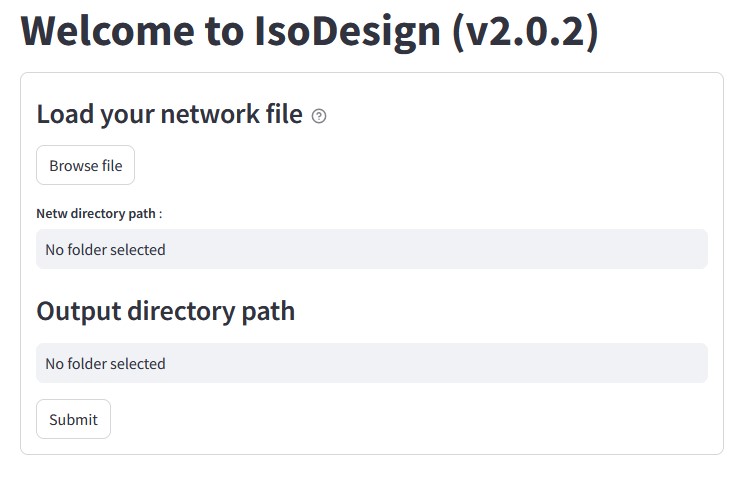
Select your input network file (which should have a .netw extension,
refer to Required input data files for more details).
By default, an output directory path is pre-configured, but you can modify
it if needed. Once ready, you click the “Submit” button to load your model
and explore its structure through a dedicated interface. Afterward, click on
“Next Page” to go to the next step. This will open the Define label inputs page.

In the page Define label inputs, you can define the available isotopic forms of the substrate(s) and specify the desired proportions to be tested by setting lower and upper bounds along with a number of intervals. Additionally, you can preview the generated combinations before proceeding with simulations (refer to the Define label inputs for more details).

In the Simulation options page, you can choose your desired simulation mode: influx_s (stationary) or influx_i (instationary) (refer to the Run simulations for more details). Then, configure the simulation options and initiate the simulation. Once the calculations are completed, you can proceed to the Analyze results page.
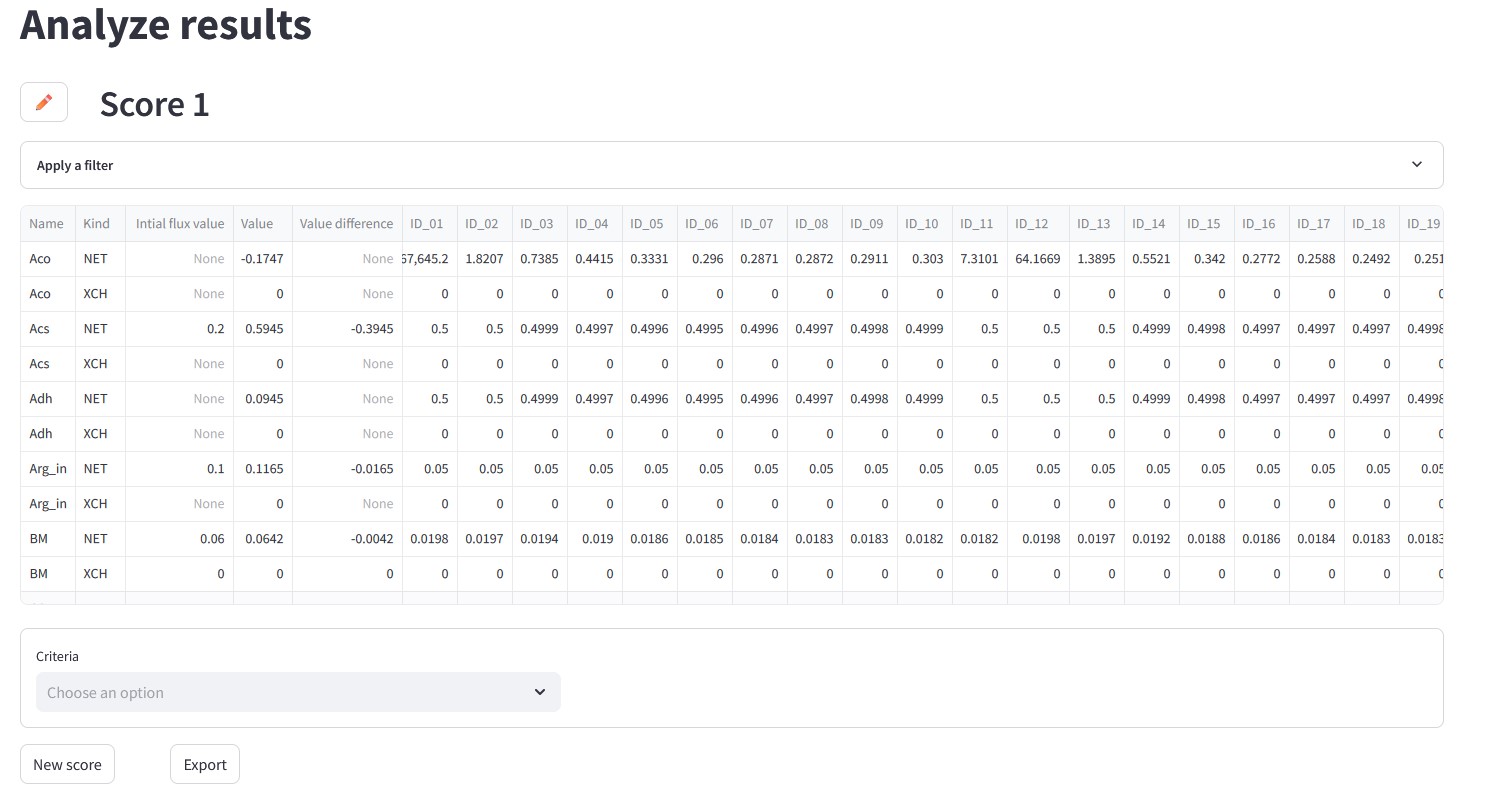
The Analyze results page allows you to visualize the results and apply one or more scoring criteria to identify the optimal label input (refer to Analyze results for more details).
Note
The process is continuously and automatically saved as a pickle file (.pkl) in the output folder. To reopen the current processing state, just reopen this file by clicking on “Load a previous session” on the “Load data” page.
Warning
IsoDesign overwrites (results and processing) files if they already exist. So take care to copy your results elsewhere or to change the output path and/or filename if you want to protect them from overwriting.
Library
IsoDesign is also available as a library (a Python module) that you can import directly in your Python scripts:
import isodesign